Asset Browser
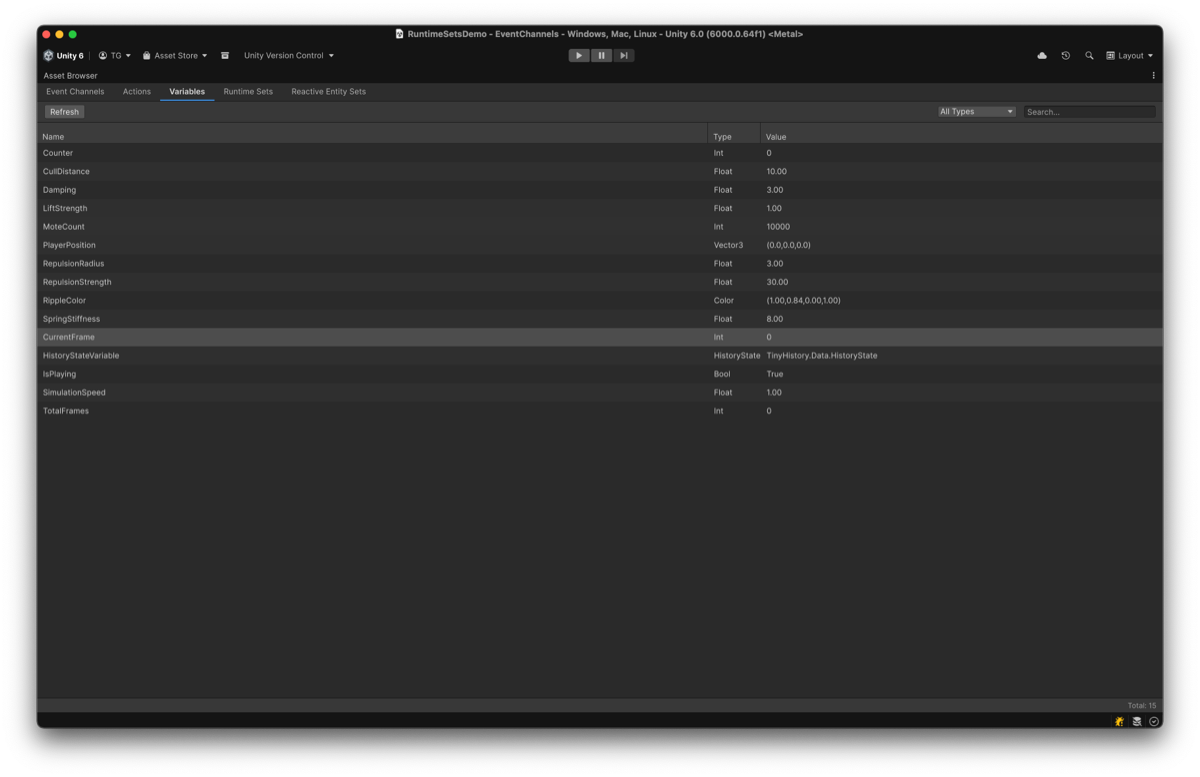
Available since v2.1.0. The Asset Browser succeeds the Variable Monitor’s state overview functionality from v1.1.0.
Purpose
This guide explains how to use the Asset Browser Window to manage and inspect all your Reactive SO assets in one place. You will learn to search, filter, and interact with assets during Play Mode.
Opening the window
Navigate to Window > Reactive SO > Asset Browser.
Features
The Asset Browser provides a unified view for all Reactive SO asset types.
- Event Channels
- Actions
- Variables
- Runtime Sets
- Reactive Entity Sets
Tabs
Use the tabs at the top to switch between asset categories.
Search and filter
| Control | Description |
|---|---|
| Search Bar | Filter assets by name. |
| Type Filter | Filter assets by their specific type (e.g., show only IntEventChannelSO). |
Drag and drop
You can drag assets directly from the list into Inspector fields. This makes it easy to assign dependencies without searching through the Project window.
Play Mode interactions
The Asset Browser becomes interactive during Play Mode.
Event Channels
| Event type | Behavior |
|---|---|
| Void Events | Click the Raise button to fire the event immediately. |
| Other Events | Click Raise to ping the asset in the Project window (manual trigger requires Inspector). |
Actions
| Action type | Behavior |
|---|---|
| Execute Button | Click to execute the action immediately. |
| Typed Actions | For ActionSO<T>, clicking Execute selects the asset in the Project window. You can then provide parameters via the Inspector’s Manual Execute section. |
Variables
The Value Column displays the current runtime value of the variable and updates in real-time.
Runtime Sets
The Count Column displays the number of items currently in the set.
Reactive Entity Sets
The Count Column displays the number of registered entities.
Use cases
Project overview
Quickly see all defined events and variables in your project to avoid creating duplicates.
Debugging events
Fire void events (like OnGameStart or OnPlayerDeath) directly from the list to test system responses.
Testing actions
Trigger game logic defined in Actions directly from the editor without needing to create temporary UI buttons.
Monitoring state
Watch variable values update in real-time across multiple variables without selecting them individually.