Monitor Window
The unified Monitor Window is available since v2.1.0. Prior to v2.1.0, individual monitor windows existed for Event Channels, Variables, and Runtime Sets.
Purpose
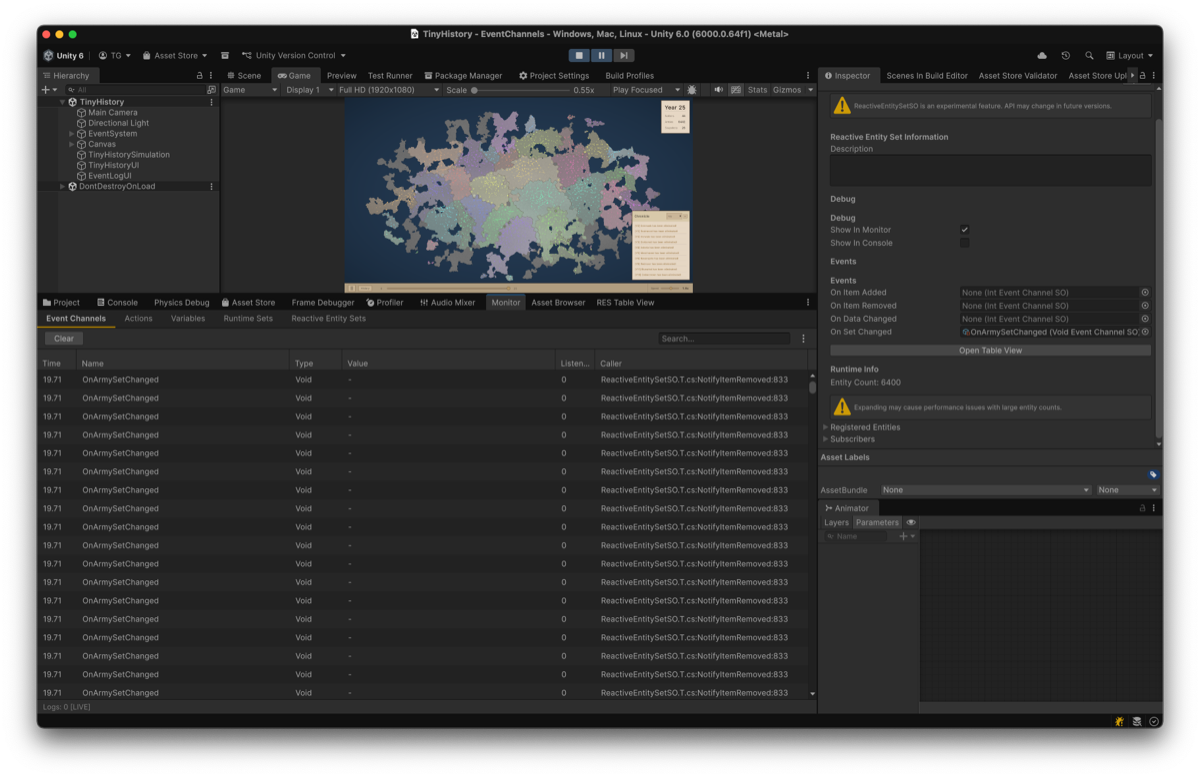
This guide explains how to use the Monitor Window to track events, variables, and sets in real-time. It combines the functionality of the Event Monitor, Variable Monitor, and Runtime Set Monitor into a single, tabbed interface.
Opening the window
Navigate to Window > Reactive SO > Monitor.
Common features
The Monitor Window shares a common interface across all tabs.
Toolbar
| Control | Description |
|---|---|
| Clear | Removes all current log entries. |
| Search | Filters the log list by name, type, or other text. |
| Menu (⋮) > Export/CSV | Save the current logs to a CSV file. |
| Menu (⋮) > Export/CSV (Excel) | Save with UTF-8 BOM for Excel compatibility. |
| Menu (⋮) > Max Entries | Set the maximum number of logs to keep (100 - 10K). |
Footer
| Element | Description |
|---|---|
| Status | Shows the total number of logs and how many are currently visible (filtered). |
| [LIVE] | Indicates that real-time updates are active (Play Mode). |
Log persistence
Logs behave as follows.
| Action | Behavior |
|---|---|
| Enter Play Mode | Logs are cleared automatically |
| During Play Mode | Events and changes are recorded |
| Exit Play Mode | Logs are preserved for review |
| Next Play Mode | Previous logs are cleared |
Event Channels Tab
Tracks events raised by EventChannelSO assets.
Columns
| Column | Description |
|---|---|
| Time | Seconds since Play Mode started |
| Name | Name of the event channel asset |
| Type | Event type (Void, Int, Float, etc.) |
| Value | Value passed with the event |
| Listeners | Number of active listeners |
| Caller | Code location that raised the event |
Caller information
The Caller column shows FileName.cs:MethodName:LineNumber. Click it to open the file in your IDE.
Limitation: Caller info works for code calls only. Events raised via UnityEvents (e.g., Inspector button clicks) will show “-“.
Actions Tab
Tracks executions of ActionSO assets.
Columns
| Column | Description |
|---|---|
| Time | Seconds since Play Mode started |
| Name | Name of the action asset |
| Type | Action type |
| Description | Action description (from Inspector) |
| Caller | Code location that executed the action |
Variables Tab
Tracks value changes in VariableSO assets.
Columns
| Column | Description |
|---|---|
| Time | Seconds since Play Mode started |
| Name | Name of the variable asset |
| Type | Variable type (Int, Float, Bool, etc.) |
| Old Value | Value before the change |
| New Value | Value after the change |
Events are only logged when the value actually changes (using EqualityComparer<T>).
Runtime Sets Tab
Tracks operations on RuntimeSetSO assets.
Columns
| Column | Description |
|---|---|
| Time | Seconds since Play Mode started |
| Name | Name of the runtime set asset |
| Type | Item type (GameObject, Transform, etc.) |
| Operation | Action performed (Add, Remove, Clear) |
| Details | Information about the item involved |
Use this to debug object registration and unregistration lifecycles.
Reactive Entity Sets Tab
Tracks operations on ReactiveEntitySetSO assets.
Columns
| Column | Description |
|---|---|
| Time | Seconds since Play Mode started |
| Name | Name of the entity set asset |
| Data Type | Type of the state struct |
| Operation | Action (Register, Unregister, SetData, UpdateData) |
| Details | Entity ID and operation details |
Use this to monitor entity lifecycles and state updates.
Exporting logs
You can export logs from any tab to CSV for external analysis.
- Select the tab you want to export.
- Click the kebab menu (⋮) in the toolbar.
- Select Export/CSV or Export/CSV (Excel).
- Choose a save location.