Dependency analyzer
Purpose
This guide explains how to use the Dependency Analyzer for static analysis. You will learn to find unused event channels, detect unassigned fields, and understand refactoring impact.
Opening the window
Navigate to Window > Reactive SO > Dependency Analyzer.
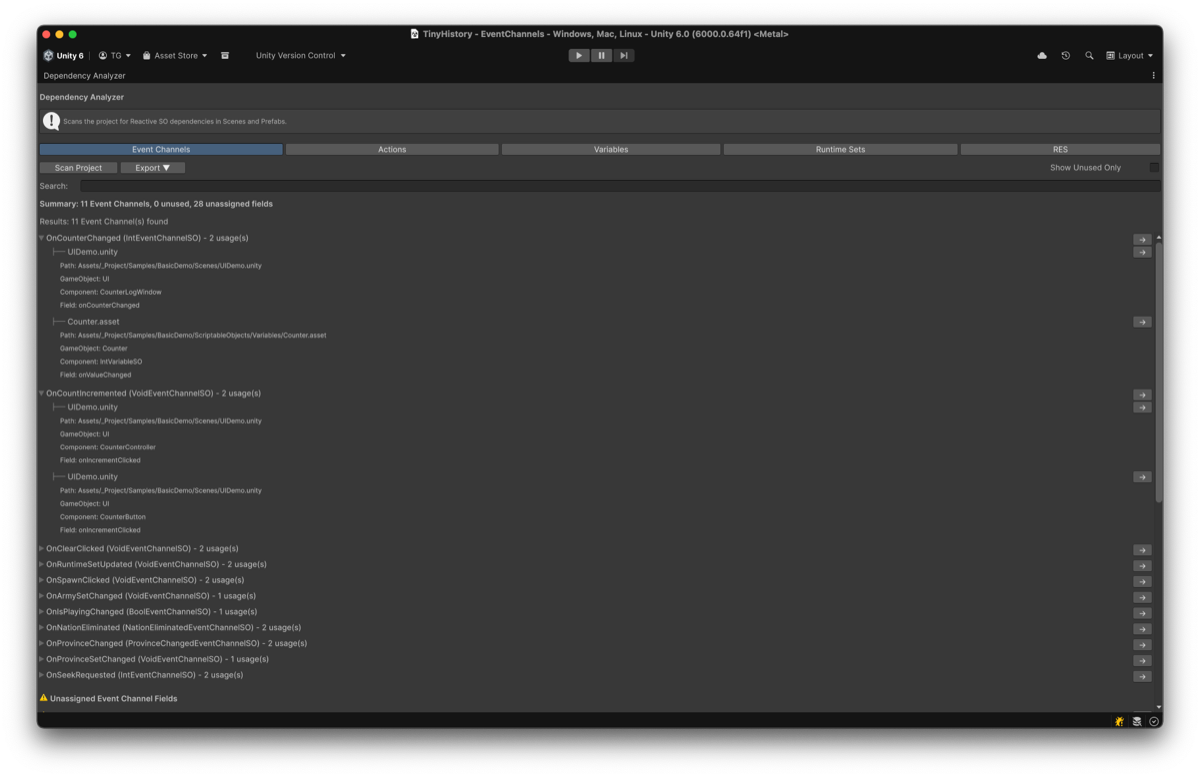
Tabs
The Dependency Analyzer has four tabs.
| Tab | Description |
|---|---|
| Event Channels | Analyze event channel usage and unassigned fields |
| Actions | Analyze action usage and unassigned fields |
| Variables | Analyze variable usage and unassigned fields |
| Runtime Sets | Analyze runtime set usage and unassigned fields |
All tabs provide the same functionality for their respective asset types.
What gets scanned
Every tab scans scenes and prefabs for components holding a reference to its asset type.
The Event Channels tab additionally scans the built-in ScriptableObject types that hold event channel references — VariableSO (onValueChanged), RuntimeSetSO (onItemsChanged, onCountChanged), and ReactiveEntitySetSO (onItemAdded, onItemRemoved, onDataChanged, onSetChanged, onTraitAdded, onTraitRemoved). The other tabs have no equivalent to scan, because no built-in type holds an action, variable, or runtime set reference.
A reference held only by your own ScriptableObject is not found. This affects every tab equally. If an asset is reported as unused, check whether the only reference to it lives on a ScriptableObject rather than in a scene or prefab:
// Found: the reference is on a component in a scene or prefab
public class RewardGiver : MonoBehaviour
{
    [SerializeField] private ActionSO rewardAction;
}

// Not found: the reference is on a ScriptableObject
[CreateAssetMenu(menuName = "MyGame/Quest")]
public class QuestSO : ScriptableObject
{
    [SerializeField] private ActionSO rewardAction;
}
Both are valid designs. The second one simply cannot be counted by the analyzer today.
Use cases
Detecting unassigned fields
Problem: You added a PlayerController but forgot to assign the event channel. The game crashes at runtime with NullReferenceException.
Steps:
- Open Dependency Analyzer
- Click Scan Project
- Check the Summary line for unassigned fields
- Review the Unassigned Event Channel Fields section
- Click the arrow to jump to each location
Example:
Summary: 20 Event Channels, 1 unused, 3 unassigned fields

Unassigned Event Channel Fields:
  MainScene.unity > Player.PlayerController.onPlayerDeath
  EnemyPrefab.prefab > Enemy.EnemyAI.spawnEvent
  UICanvas.prefab > HealthBar.onHealthChanged
Finding unused event channels
Problem: Your project has 50 event channels and you do not know which are unused.
Steps:
- Open Dependency Analyzer
- Click Scan Project
- Enable Show Unused Only
- Review the list
You can safely delete event channels with zero usages.
Checking refactoring impact
Problem: Before deleting OnPlayerDeath, you need to know where it is used.
Steps:
- Open Dependency Analyzer
- Click Scan Project
- Search for “OnPlayerDeath”
- Expand the event channel to see all usages
- Click the arrow to jump to each location
Example:
OnPlayerDeath (VoidEventChannelSO) - 5 usage(s)
  MainScene.unity
    Path: Assets/Scenes/MainScene.unity
    GameObject: Player
    Component: PlayerController
    Field: onPlayerDeath
  BossController.prefab
  GameOverUI.prefab
Documenting usage
Problem: Team members ask “Where is this event channel used?” repeatedly.
Steps:
- Open Dependency Analyzer
- Click Scan Project
- Click Export > Export to Markdown
- Save the report
- Share with team or commit to version control
Window features
Summary line
Summary: 15 Event Channels, 2 unused, 3 unassigned fields
| Stat | Description |
|---|---|
| Event Channels | Total count in project |
| unused | Channels with no references |
| unassigned fields | Fields declared but not assigned |
Tree view
Event channels display in a tree structure:
OnPlayerDeath (VoidEventChannelSO) - 3 usage(s)
  MainScene.unity
    Path: Assets/Scenes/MainScene.unity
    GameObject: Player
    Component: PlayerController
    Field: onPlayerDeath
  BossController.prefab
  GameOverUI.prefab
Click the arrow to jump to assets.
Unassigned fields section
Unassigned Event Channel Fields:

  MainScene.unity > Player.PlayerController.onPlayerDeath
  EnemyPrefab.prefab > Enemy.EnemyAI.spawnEvent
Click the arrow to jump and fix.
Search and filter
Use the search bar to filter:
- By name:
OnPlayerDeath - By type:
Void,Int,Float - Partial matches:
PlayermatchesOnPlayerDeath,OnPlayerJumped
Show Unused Only
Enable to display only event channels with zero references. Use this to identify deletable assets.
Exporting results
Click Export and select a format:
| Format | Use Case |
|---|---|
| Markdown | Human-readable documentation |
| JSON | Programmatic analysis |
| CSV | Spreadsheet analysis |
Markdown example
# Event Channels Dependency Report

Generated: 2025-12-27 10:30:00

## Summary

- Total Event Channels: 15
- Used Event Channels: 13
- Unused Event Channels: 2

### OnPlayerSpawn (VoidEventChannelSO)
**Path:** Assets/EventChannels/OnPlayerSpawn.asset
**Usages:** 3

1. **Assets/Scenes/MainScene.unity**
   - GameObject: SpawnManager
   - Component: SpawnManager
   - Field: spawnEventChannel
JSON example
{
  "GeneratedAt": "2025-12-27T10:30:00Z",
  "Summary": {
    "TotalEventChannels": 15,
    "UsedEventChannels": 13,
    "UnusedEventChannels": 2
  },
  "EventChannels": [
    {
      "Name": "OnPlayerSpawn",
      "Type": "VoidEventChannelSO",
      "UsageCount": 3,
      "Usages": [...]
    }
  ]
}
CSV example
EventChannelName,EventChannelType,AssetPath,UsageCount,IsUsed
OnPlayerSpawn,VoidEventChannelSO,Assets/EventChannels/OnPlayerSpawn.asset,3,TRUE
OnPlayerDeath,VoidEventChannelSO,Assets/EventChannels/OnPlayerDeath.asset,0,FALSE
Limitations
The Dependency Analyzer uses static analysis only. It does not detect:
- Dynamic references (
Resources.Load,Addressables.LoadAssetAsync) - String-based references
- Runtime-created references
Use Event Monitor during Play Mode to detect runtime references.
Performance
Scan times depend on project size:
| Assets | Time |
|---|---|
| 100 | ~5 seconds |
| 500 | ~15 seconds |
| 1000 | ~30 seconds |
A progress bar shows scan status. You can cancel if needed.
Tips
- Run before major refactoring
- Export to Markdown and commit to version control
- Use Show Unused Only periodically to keep the project clean
- Combine with Event Monitor for both static and dynamic analysis
References
- Debugging Overview - All debugging tools
- Event Monitor - Runtime event tracking
- Troubleshooting - Common issues