RES Table View
ReactiveEntitySetSO is an experimental feature. The API may change in future versions.
Purpose
This guide explains how to use RES Table View to view and edit ReactiveEntitySet entity data in a table format. You will learn how to capture snapshots while paused in Play Mode, inspect and edit individual entity values, and save/restore data using binary files.
Opening the window
Open the window using one of the following methods:
- From menu: Window > Reactive SO > RES Table View
- From Inspector: Select a ReactiveEntitySetSO asset and click “Open Table View”
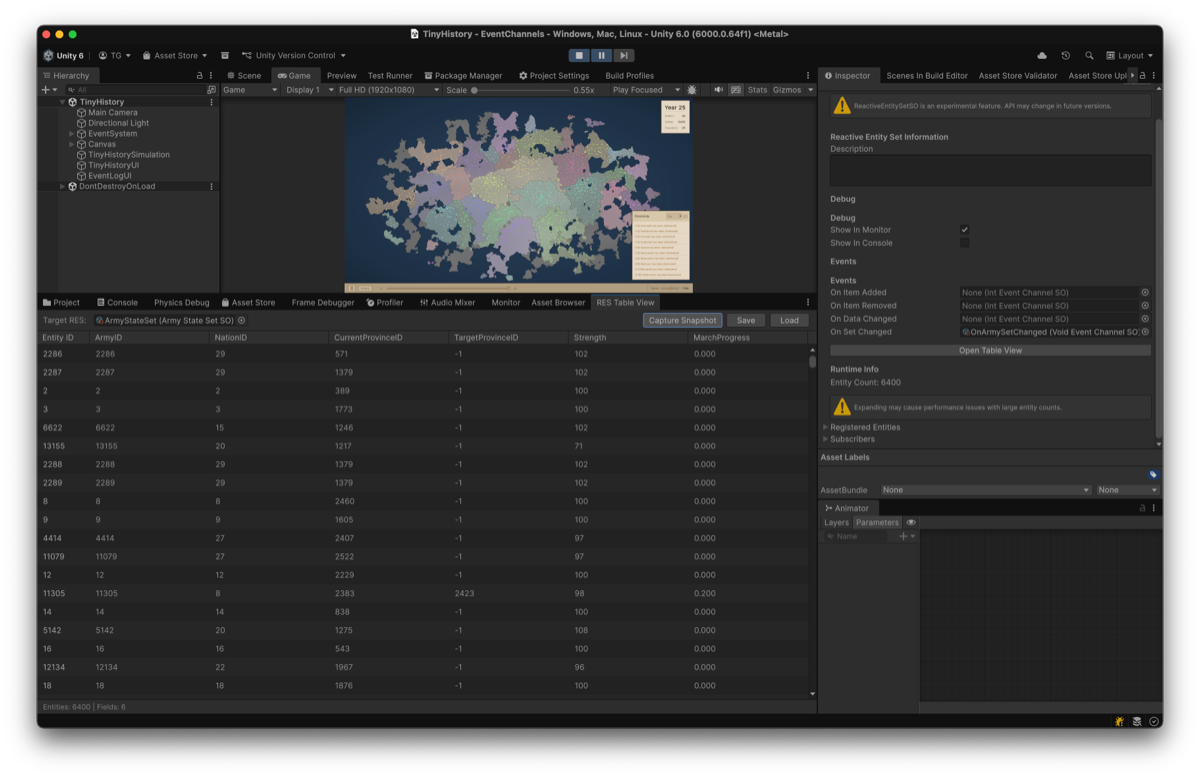
Basic Usage
Capturing a snapshot
- Enter Play Mode
- Pause the game (Pause button)
- Select the target ReactiveEntitySetSO in Target RES
- Click “Capture Snapshot”
When capture succeeds, entity data is displayed in the table.
Snapshots can only be captured while paused. Data is cleared when you resume.
Editing data
- Double-click the cell you want to edit
- Enter the new value
- Press Enter to confirm, Escape to cancel
Edited values are immediately applied to the ReactiveEntitySet, firing the OnDataChanged event.
Toolbar
| Element | Description |
|---|---|
| Target RES | Select the target ReactiveEntitySetSO |
| Capture Snapshot | Capture current entity data |
| Save | Save captured data to a binary file |
| Load | Load data from a binary file, completely overwriting |
Save / load feature
Save
Saves captured snapshot data as a .resdata file.
| Property | Value |
|---|---|
| Enabled when | Captured data exists |
| File format | Binary (.resdata) |
| Contents | EntityID and all TData struct fields |
Load
Load completely overwrites current entity data. This operation cannot be undone.
Restores from a saved .resdata file, completely replacing the ReactiveEntitySet data.
| Property | Value |
|---|---|
| Enabled when | Paused and RES is selected |
| Behavior | Calls RestoreSnapshot(), replacing all entities |
| Warning | A confirmation dialog appears after file selection |
Binary Format
[Header] - 20 bytes
├─ Magic: "RES\0" (4 bytes)
├─ Version: int32
├─ TypeHash: int32 (hash of TData type)
├─ DataSize: int32 (size of TData struct)
└─ EntityCount: int32

[Data]
├─ EntityIds: int32[] (EntityCount items)
└─ EntityData: byte[] (EntityCount × DataSize bytes)
Columns
| Column | Description |
|---|---|
| Entity ID | Unique entity identifier (read-only) |
| (TData fields) | Each field of the TData struct is dynamically displayed as a column |
| Traits | Shown only when the set uses Traits. Displays the trait bitmask in hex (read-only) |
| (View name) | One column per registered ReactiveView, showing ✓ if the entity is a member of that view (read-only) |
Supported types
| Type | Display Format | Editable |
|---|---|---|
| int, float, byte, etc. | Number | ✓ |
| bool | True/False | ✓ (toggle) |
| Enum | Value name | ✓ (dropdown) |
| Vector2, Vector3 | (x, y, z) | × |
| Quaternion | Euler angles | × |
| Color | (r, g, b, a) | × |
| Non-primitive value type fields (nested structs) | Recursively flattened into dot-separated columns (e.g. Position.X, Position.Y), up to a maximum nesting depth of 5 | × |
Compound types like Vector and Quaternion, as well as flattened nested-struct columns, are display-only and cannot currently be edited. Only top-level fields support editing. Reference type (class) fields are not flattened, to avoid circular references.
Trait / View columns
- Traits column: Shown only when the target ReactiveEntitySetSO has used trait storage at least once (e.g.
AddTraits/SetTraits). This is an MVP implementation that displays the raw bitmask in hex (e.g.0x05); human-readable trait name decoding is planned for a future update. - View columns: One column is added per
ReactiveViewregistered viaCreateView. The column title uses thenameargument passed toCreateView(or a sequential fallback likeView #0if omitted), and shows ✓ when the entity is a member of that view.
Use cases
Inspecting entity states
Examine the current values of specific entities to identify the cause of issues. Pause during Play Mode and capture a snapshot to see all entity data at that point in time.
Testing game logic
Test game logic behavior by directly editing values. For example, set an entity’s HP to 0 to verify that death processing works correctly.
Saving bug reproduction data
Save the entity state at the moment a bug occurs as a .resdata file, then restore it later to continue debugging.
Regression test baselines
Save specific states and load them during test execution to enable consistent testing under the same conditions.
Limitations
| Limitation | Detail |
|---|---|
| Play Mode required | Does not work in Edit Mode |
| Pause required | Capture, edit, and load only work while paused |
| Type compatibility | Loading a file with a different TData type shows a warning |
| Compound type editing | Vector, Quaternion, Color cannot be edited |
| Large data | Works with 10,000+ entities through virtualization, but initial capture may take time |
See Also
- Monitor Window - Real-time event tracking
- ReactiveEntitySet Guide - Basic usage
- Snapshots and Persistence - CreateSnapshot/RestoreSnapshot details