Getting started
Purpose
This guide walks you through installing Reactive SO and creating your first Event Channel. You will learn the basic workflow for decoupling game systems.
Installation
Reactive SO is installed via Unity Package Manager.
- Open Window > Package Manager
- Find Reactive SO in the package list
- Click Install
If you purchased from the Asset Store, use My Assets tab to import the package.
Quick start: your first event channel
Step 1: Create an event channel asset
Right-click in the Project window.
Create > Reactive SO > Channels > Void Event
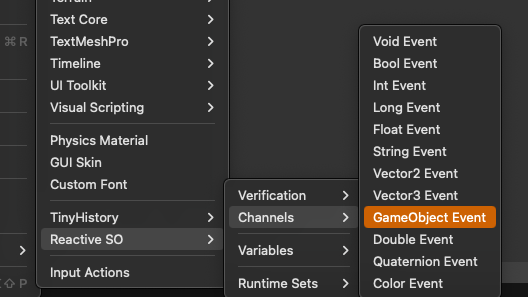
Name it OnPlayerDeath.
Step 2: Raise the event (publisher)
using Tang3cko.ReactiveSO;
using UnityEngine;

public class Player : MonoBehaviour
{
    [SerializeField] private VoidEventChannelSO onPlayerDeath;

    public void Die()
    {
        onPlayerDeath?.RaiseEvent();
    }
}
Step 3: Subscribe to the event (subscriber)
using Tang3cko.ReactiveSO;
using UnityEngine;

public class GameManager : MonoBehaviour
{
    [SerializeField] private VoidEventChannelSO onPlayerDeath;

    private void OnEnable()
    {
        onPlayerDeath.OnEventRaised += HandlePlayerDeath;
    }

    private void OnDisable()
    {
        onPlayerDeath.OnEventRaised -= HandlePlayerDeath;
    }

    private void HandlePlayerDeath()
    {
        Debug.Log("Game Over!");
    }
}
Step 4: Connect in the Inspector
- Select the Player GameObject
- Drag the
OnPlayerDeathasset to the serialized field - Do the same for GameManager
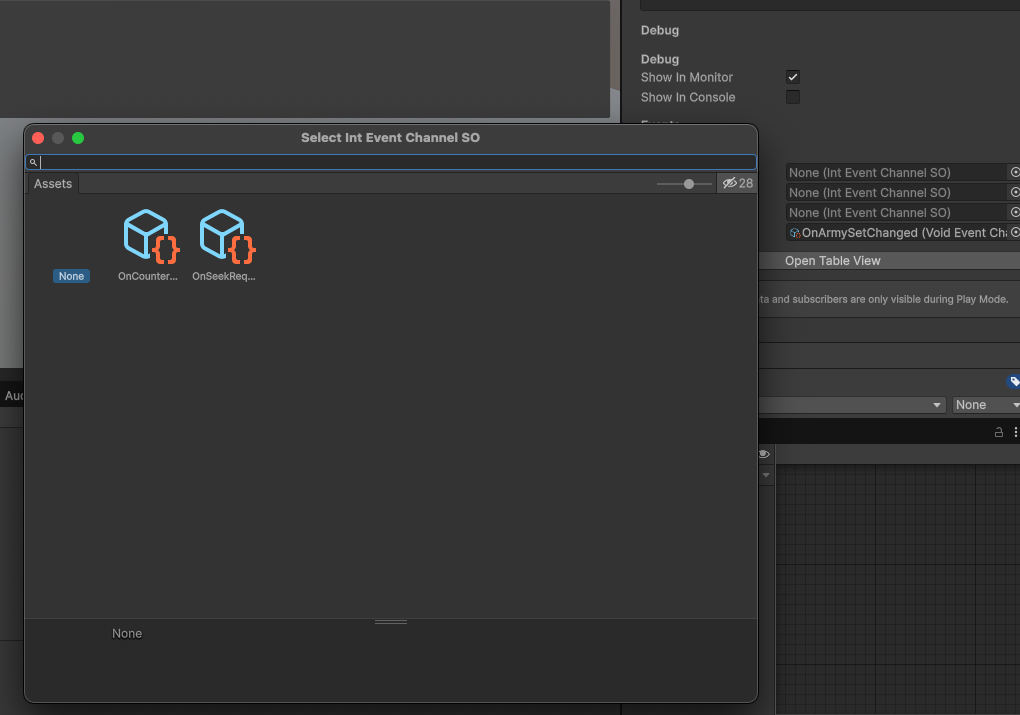
That’s it! The Player and GameManager are now decoupled.
Available event types
| Type | Use Case | Example |
|---|---|---|
| Void | Notifications without data | OnGameStart, OnPlayerDeath |
| Int | Integer values | OnScoreChanged, OnLevelUp |
| Float | Float values | OnHealthChanged, OnProgress |
| Bool | Boolean states | OnPaused, OnMuted |
| String | Text messages | OnDialogue, OnNotification |
| Vector2 | 2D positions/directions | OnInputAxis, OnTouchPosition |
| Vector3 | 3D positions/directions | OnSpawnPosition, OnTargetPosition |
| Quaternion | Rotations | OnCameraRotation |
| Color | Colors | OnThemeChanged |
| GameObject | Object references | OnEnemySpawned, OnTargetChanged |
| Long | Large integers | OnTimestamp |
| Double | Precise decimals | OnPreciseValue |
See Event Types Reference for details.
Best practices
Always unsubscribe
Prevent memory leaks by unsubscribing in OnDisable.
private void OnEnable()
{
    eventChannel.OnEventRaised += HandleEvent;
}

private void OnDisable()
{
    eventChannel.OnEventRaised -= HandleEvent;  // Required!
}
Use null-conditional operator
Avoid null reference exceptions.
// Good
onPlayerDeath?.RaiseEvent();

// Bad - throws if not assigned
onPlayerDeath.RaiseEvent();
Assign in the Inspector
Keep event flow visible by assigning channels in the Inspector rather than finding them in code.
See it in action
Use the Monitor Window to watch your event fire in real-time.
- Open Window > Reactive SO > Monitor
- Enter Play Mode
- Trigger the player death—the event appears instantly in the log
This observability is central to Reactive SO. You can always see what’s happening in your architecture.
Learn more about debugging tools
What’s next?
| If you want to… | Read… |
|---|---|
| Learn about all event types | Event Types Reference |
| Share state between systems | Variables Guide |
| Track object collections | Runtime Sets Guide |
| Manage entity state | Reactive Entity Sets Guide |
| Debug event flow | Debugging |
| Understand architecture | Event Channels Guide |