Mote Demo (GPU Sync)
Overview
Demonstrates the GPU Sync feature of Event Channels. This demo shows how VariableSO types can automatically sync values to shaders via Shader.SetGlobal~(), enabling GPU-based rendering to react to gameplay state without direct script-to-shader coupling.
Key demonstration: GPU Sync works with both Compute Shaders and Shuriken Particle Systems via custom shaders that reference global properties.
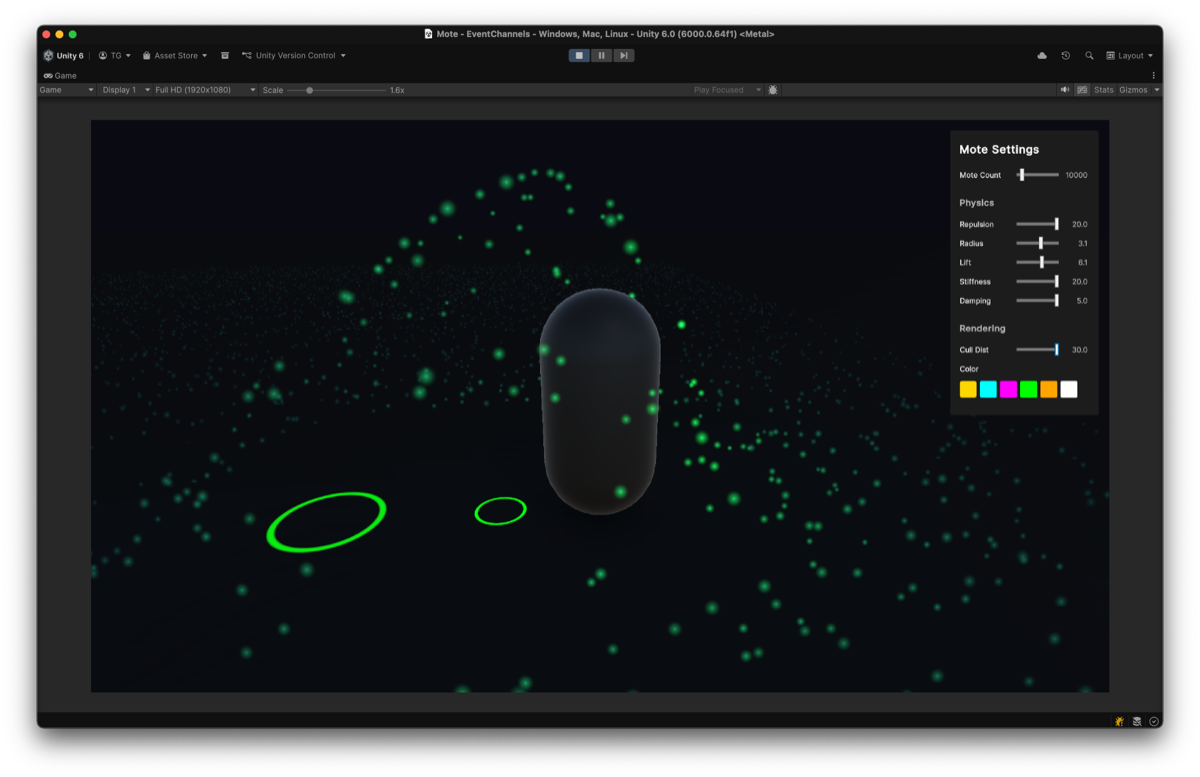
10,000 motes respond to player proximity.
- Motes glow brighter as the player approaches
- Motes repel and float upward when touched
- Motes smoothly return to their home positions using spring-damper physics
- Distance culling ensures only nearby motes are rendered
Footstep ripples complement the motes.
- Ripple particles emit as the player walks
- Ripples share the same color as motes via GPU Sync (
_RippleColor) - UI color changes affect both motes and ripples simultaneously
Features Used
| Feature | Asset | Shader Property | Description |
|---|---|---|---|
| GPU Sync (Vector3) | PlayerPosition | _PlayerPosition | Player position for proximity effects |
| GPU Sync (Color) | RippleColor | _RippleColor | Shared color for motes and ripples |
| GPU Sync (Int) | MoteCount | _MoteCount | Number of motes to simulate |
| GPU Sync (Float) | CullDistance | _CullDistance | Maximum render distance from player |
| GPU Sync (Float) | RepulsionRadius | _RepulsionRadius | Player repulsion range |
| GPU Sync (Float) | RepulsionStrength | _RepulsionStrength | Repulsion force intensity |
| GPU Sync (Float) | LiftStrength | _LiftStrength | Upward lift when repelled |
| GPU Sync (Float) | SpringStiffness | _SpringStiffness | Return-to-home spring force |
| GPU Sync (Float) | Damping | _Damping | Velocity damping coefficient |
Architecture
graph LR
    subgraph "Gameplay Layer"
        PC[PlayerController]
        UI[MoteSettingsUI]
    end

    subgraph "Event Channels (GPU Sync)"
        V1[Vector3VariableSO<br/>PlayerPosition]
        V2[IntVariableSO<br/>MoteCount]
        V3[FloatVariableSO<br/>CullDistance, etc.]
        V4[ColorVariableSO<br/>RippleColor]
    end

    subgraph "GPU"
        CS[Compute Shader<br/>Physics + Culling]
        FS[Fragment Shader<br/>Mote Rendering]
        RS[Ripple Shader<br/>Shuriken Particles]
    end

    PC -->|"Value = position"| V1
    UI -->|"Value = color"| V4
    V1 -->|"SetGlobalVector"| CS
    V1 -->|"SetGlobalVector"| FS
    V2 -->|"SetGlobalInt"| CS
    V3 -->|"SetGlobalFloat"| CS
    V4 -->|"SetGlobalColor"| FS
    V4 -->|"SetGlobalColor"| RS
Key Insight: No direct dependency between PlayerController and MoteSimulation, or between MoteSettingsUI and particle systems. VariableSO acts as a decoupled bridge, allowing the GPU to access gameplay state without coupling.
Why Shuriken? GPU Sync uses Shader.SetGlobal~() to sync values. Shuriken particles can use custom shaders that reference global properties. VFX Graph cannot access Shader.SetGlobal~() (requires VisualEffect.SetXXX() API instead).
Technical Details
GPU Pipeline
- Compute Shader (
Mote.compute)- In-place physics simulation (spring-damper + repulsion)
- Distance culling via AppendBuffer
- Only motes within
_CullDistanceare output
- Fragment Shader (
Mote.shader)- Billboard quad rendering
- Proximity-based glow effect using
_RippleColor - URP compatible
- Shuriken Particles (
Ripple.shader)- Ring-shaped ripple effect for footsteps
- References
_RippleColorglobal property - Demonstrates GPU Sync with standard particle systems
Buffer Strategy
- Single Buffer: In-place GPU update (no CPU-GPU sync)
- AppendBuffer: Distance culling output
- DrawMeshInstancedIndirect: Dynamic instance count from culled results
Key Files
| File | Description |
|---|---|
Scripts/PlayerController.cs | Updates Vector3VariableSO with player position |
Scripts/MoteSimulation.cs | Manages GPU buffers and dispatches Compute Shader |
Scripts/FootstepRippleEmitter.cs | Emits ripple particles when player moves |
Scripts/MoteSettingsUI.cs | UI bindings for VariableSO parameters |
Scripts/TPSCameraFollow.cs | Third-person camera using Vector3VariableSO |
Shaders/Mote.compute | Physics simulation + distance culling |
Shaders/Mote.shader | Billboard rendering with proximity glow |
Shaders/Ripple.shader | Ring-shaped ripple for Shuriken particles |
ScriptableObjects/Variables/*.asset | VariableSO assets with GPU Sync enabled |
UI/MoteSettings.uxml | Settings panel layout |
Use Cases
This pattern is applicable to scenarios where GPU effects need to react to gameplay.
| Use Case | Example |
|---|---|
| Particles / Motes | Glow and scatter when player approaches |
| Magic Aura | Visual effects that follow or react to player position |
| Environmental Effects | GPU-simulated effects responding to gameplay state |
| Shader Parameters | Any shader property that needs to react to game variables |
GPU Sync Usage
To use GPU Sync in your own project:
- Create a VariableSO asset (Int, Float, Vector3, etc.)
- Enable GPU Sync in the Inspector
- Set the Property Name (e.g.,
_PlayerHealth) - Reference the global property in your shader.
// Shader automatically receives the value
float3 playerPos = _PlayerPosition.xyz;
float cullDist = _CullDistance;
No bridging code required. The VariableSO handles synchronization automatically.